In the first post I covered what APEXLang is, and in the second post I walked through how all the pieces connect. Now it’s time to get the workspace ready. Let’s not confuse this workspace with the APEX workspace. In this case I’m talking about the VS Code workspace. There are a couple of decisions to make before you start, mainly around how you organize your configuration and how many VS Code workspaces you want to manage. It’s worth thinking through both before you start creating folders.
This is where things get a bit trickier. Every place works differently, different teams, different clients, different constraints. What works well for one project might not work at all for another. The workspace configuration options I’ll cover here aren’t meant to be prescriptive. Think of them as a starting point. There will be some trial and error involved before you land on what works best for your situation, and that’s completely normal.
Global vs Project Configuration
Before getting into the project structure, one quick note on global versus project configuration. Claude Code supports a global config folder at ~/.claude/ on your machine, separate from the project folder. Anything in there applies across all your projects. It’s a good place for personal preferences and skills you use everywhere. The project-level .claude/ folder covered in this post is what gets committed to Git and shared with your team. Both can coexist, and the loading order is covered later in this post.
Project Structure
Before getting into the configuration files, here’s the folder structure we’ll be working with throughout this series. It’s what I’ve landed on after a bit of trial and error, and it keeps things clean as projects grow.
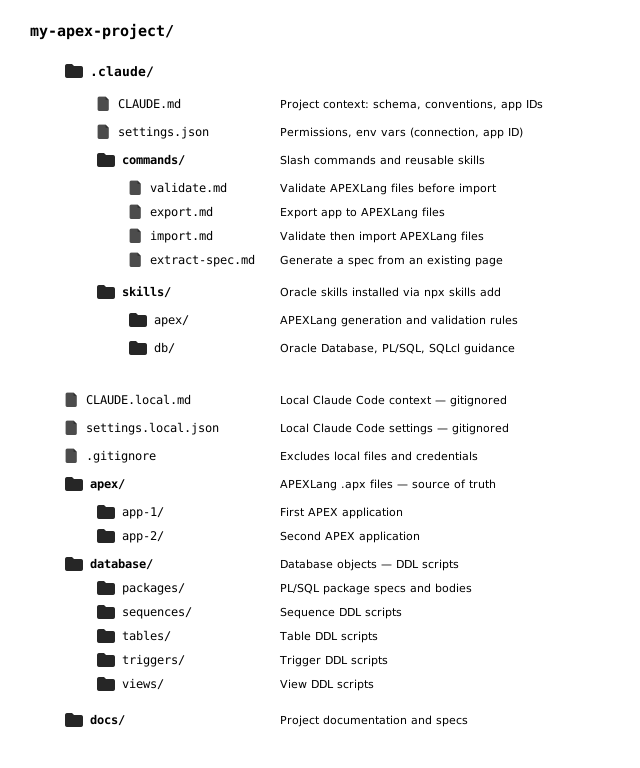
The apex/ folder holds your APEXLang .apx files, organized by application.
The database/ folder holds your DDL scripts.
The docs/ folder is for specs and any project documentation.
The .claude/ folder is where Claude Code configuration lives, and that’s what most of this post is about.
The Configuration Files
When you’re using Claude Code as your AI assistant, configuration lives in a folder called .claude/. This folder sits inside your project and gets committed to Git along with everything else. That’s important, anything the team needs should be in the repo, not tucked away on someone’s local machine where no one else can see it.
Inside .claude/, the things you’ll work with most are:
- CLAUDE.md - this is where you give Claude Code context about the project. Things like which schema prefix to use, what APEX app IDs are involved, naming conventions, PL/SQL standards. No credentials or things specific to your machine should go here.
- settings.json - permissions and environment variables. This is where you could set the SQLcl connection name, app ID, and workspace, and where you tell Claude Code what it’s allowed and not allowed to do.
- commands/ - reusable slash commands. Things you want to run on demand, like validating APEXLang files before an import or exporting the current app to files. They’re essentially reusable user-defined prompts shortcuts.
- skills/ - background knowledge files that Claude reads proactively, before responding, when it detects the task matches a skill’s description. You never call them directly. Claude decides when they’re relevant. They include best practices, environment-specific constraints, or tool usage patterns. This is where we will install Oracle skills from the oracle/skills repository (more on this below).
There’s also CLAUDE.local.md, which sits at the project root rather than inside .claude/. It works the same way as CLAUDE.md but is gitignored, so it never gets committed. It’s the right place for anything specific to your machine, your local SQLcl connection name, personal notes, anything you don’t want shared with the team. Claude Code loads CLAUDE.md first, then CLAUDE.local.md on top of it, so anything in the local file overrides the shared one where they overlap. You can also use a settings.local.json file if your usecase can benefit from it. It’s the same logic as for the CLAUDE.local.md file, where it would store anything relevant to your specific machine and would be added to your gitignored.
Working with Codex
If your team is using OpenAI’s Codex instead of Claude Code, the structure is actually quite similar. Where Claude Code uses a .claude/ folder, Codex uses a .codex/ folder. The core concepts map across cleanly.
Here’s how the two compare:
| Claude Code | Codex |
|---|---|
CLAUDE.md |
AGENTS.md (project root) |
~/.claude/skills/ |
~/.codex/skills/ (personal, global) |
.claude/skills/ |
.codex/skills/ (project, committed to Git) |
.claude/commands/ |
scripts/ inside each skill folder |
One thing worth knowing if your team uses both tools: right now, Claude Code doesn’t natively read AGENTS.md, it only reads CLAUDE.md. But you don’t have to maintain two separate files. The common pattern is to keep AGENTS.md as your shared source of truth and either symlink CLAUDE.md to it, or have CLAUDE.md simply import it with @AGENTS.md. That way Codex (and other tools) read AGENTS.md directly, and Claude Code gets the same content through CLAUDE.md.
Skills in Codex use the same SKILL.md format as Claude Code, so the Oracle APEXLang skills work in both without any modification. Personal skills go in ~/.codex/skills/ and project skills go in .codex/skills/ relative to your repo root, the same split as Claude Code.
If you’re already set up with Claude Code, there’s no need to configure Codex as well unless your team specifically needs it. The two can coexist, but maintaining both adds overhead. Pick one and get comfortable with it first.
Oracle Skills
Oracle provides a curated set of skills for Claude Code in a public GitHub repository at github.com/oracle/skills. These are not just general guidance files. They include the APEXLang grammar rules, validation behavior, generation policies, and SQLcl runtime workflows that Claude Code needs to produce valid APEXLang files.
There are three ways to install them depending on your setup.
Option 1 - npx
If you have Node.js installed, you can use npx. To me this is the most straightforward option.
npx skills add oracle/skills/apex
npx skills add oracle/skills/db
npx skills add oracle/skills/oci (not yet available)
Here’s the process in action:
Option 2 - SQLcl
If you have SQLcl 26.1.2 set up, you can also use the new skills command.
Here’s the command’s help:
SQL> help skills
Manages SQLcl DBTools skills.

Subcommands:

  LIST

  Lists available DBTools skills.

  Usage:

    list|ls {OPTIONS}

  Options:

    -debug|-de
    Prints debug output.

    -verbose|-v
    Prints verbose progress output.


  SYNC

  Synchronizes the Oracle DBTools skills repository.

  Usage:

    sync|sy {OPTIONS}

  Options:

    -skill-name|-sn <skill-name>
    Comma-separated list of skill names to install.

    -version|-ve <version>
    Blessed skills version to install. Defaults to latest.

    -force|-fo
    Overwrites existing skill directories.

    -debug|-de
    Prints debug output.

    -verbose|-v
    Prints verbose progress output.

Examples:

  The skills command is the entry point for DBTools skill management.

    - List available skills:
    SQL> skills list

    - Synchronize the Oracle skills repository:
    SQL> skills sync

    - Synchronize and install selected skills:
    SQL> skills sync --skill-name apexlang,sqlcl

    - Synchronize a blessed skills version:
    SQL> skills sync --version v1

    - Force overwrite existing skill directories:
    SQL> skills sync --force
Run the following from inside SQLcl:
skills sync --skill-name apexlang
To see all available skills before installing:
skills list
Note:
When installing via SQLcl, skills are placed in ~/.dbtools/skills/repositories/oracle-skills/ on your machine, not in your project folder. Claude Code does not read that location automatically. To make the skills available to your project, you need to copy them into .claude/skills/ manually. The SQLcl install is useful to get the latest version of the files, but think of it as a download step, not an install step for Claude Code.
Option 3 - Manual install
You can also download the skill files directly from the oracle/skills repository and copy them manually into your .claude/skills/ folder. The folder structure should match what’s shown in the project structure diagram above.
This approach also makes it easier to review exactly what’s being added to your project before it goes in.
Once installed, your skills should be located in .claude/skills/ and Claude Code will pick them up automatically.
Note:
Never edit the files inside .claude/skills/ directly, any changes will be overwritten the next time you sync. Put your customizations in CLAUDE.md or in your own commands/ files instead.
The oracle/skills repo will keep growing as Oracle adds more into it. Depending on your project, skills like ords or devops may be relevant too. You should definitely have a look at the other available skills.
Note:
The Oracle skills cover what the APEXLang compiler actually accepts. They’re different from your CLAUDE.md conventions, which are your team’s rules on top of that. Think of the Oracle skills as the grammar, and your CLAUDE.md as the style guide.
Choosing a Workspace Approach
This is the decision that affects how you work day to day. There are two approaches, and both work, they just fit different situations.
One Workspace per APEX Project
With this approach, each APEX project gets its own VS Code workspace. The folder contains the APEXLang files for that project, a .claude/ config specific to it, and nothing else.
The benefit is clarity. The AI always knows which project it’s working on because nothing else is in scope. Project settings are fully isolated, so there’s no risk of one project’s config affecting another.
The trade-off is that if you’re working on several projects, you’re switching between workspaces regularly. It also means any shared commands or conventions need to be duplicated across projects.
One Workspace for Multiple Projects
Here, a single VS Code workspace contains subfolders for multiple APEX projects. Each project subfolder has its own .claude/ with project-specific context.
This works well for teams with several related applications, same schema family, similar conventions, same development team. You open one workspace and everything is there.
The trade-off is that you need to be more deliberate about which project is active when you’re running commands. The project-level CLAUDE.md becomes more important for keeping Claude Code focused on the right thing.
Smaller teams with a few closely related apps tend to prefer the multi-project workspace. Teams with many distinct applications, or applications with very different configurations, usually lean toward one workspace per project.
What to Commit and What to Keep Local
A good rule of thumb: if it applies to everyone on the team, commit it. If it’s specific to your machine or your credentials, keep it local.
Commit these:
- .claude/CLAUDE.md - team-wide conventions, schema context, app IDs
- .claude/settings.json - shared permissions and org-wide policies
- .claude/commands/ - commands the whole team should have access to
- .claude/skills/ - Oracle skills and any shared custom skills
- APEXLang files (.apx) - these are your application source of truth
Keep these local by adding them to .gitignore:
- CLAUDE.local.md - your personal notes and local machine preferences
- .claude/settings.local.json - your personal Claude Code settings
- Any file containing database credentials or connection strings
A starting .gitignore for an APEXLang project:
# Claude Code local overrides
CLAUDE.local.md
.claude/settings.local.json

# Never commit credentials
.env
*.credentials
*.wallet

# Claude Code session data
.claude/todos/

# SQLcl working files
.dbtools/

# npx working files
.agents/
One thing worth calling out: if you accidentally commit a credentials file, deleting it in a follow-up commit is not enough. The file stays in your Git history. Use git filter-repo or BFG Repo Cleaner to scrub it properly.
Configuration Loading Order
When you start a Claude Code session, it doesn’t just read one file. It loads configuration from multiple sources in a specific order, with each one building on top of the previous.
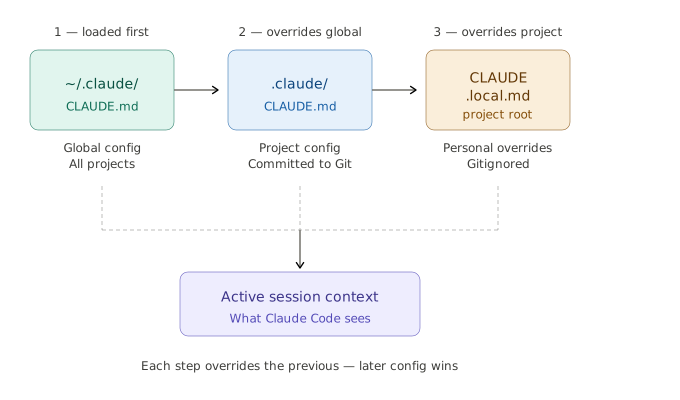
It starts with the global ~/.claude/CLAUDE.md, the baseline that applies to every project on your machine. On top of that it loads the project-level .claude/CLAUDE.md, which adds or overrides anything specific to this project. Last comes CLAUDE.local.md at the project root, which adds your personal machine-specific overrides without being shared with the team.
The key thing to understand is that later always wins. If your global config says to use a specific naming convention and your project config says something different, the project config takes over. If your CLAUDE.local.md overrides that again, that’s what Claude Code ends up with.
In practice this means you can keep your global config short and generic, let the project config handle team conventions, and use CLAUDE.local.md for anything that only applies to your local setup, like your SQLcl connection name.
Starter Repository
Before getting into the details, I put together a starter repository with everything covered in this post already set up and ready to use. It includes the full project folder structure, a sample CLAUDE.md, settings.json, and a handful of commands to get you started. You can find it at APEXLang-Project-Template — clone it, fill in your schema prefix and app ID, and you have a working starting point.
Once everything is in place, the fun part starts!